Reading the Parent Dashboard: What the Numbers Mean
One of the things I appreciate most about WordQuest is the parent dashboard. After years of educational apps that tell me nothing about what my child actually learned, having real data is refreshing. But data is only useful if you know what it means and what to do with it. So let's walk through every panel on the progress screen and talk about what "good" actually looks like.
To access the dashboard, sign in to your parent account, head to Progress, and tap into the child whose progress you want to see. You'll land on the Overview tab, with Words, Activity, and Manage tabs alongside.
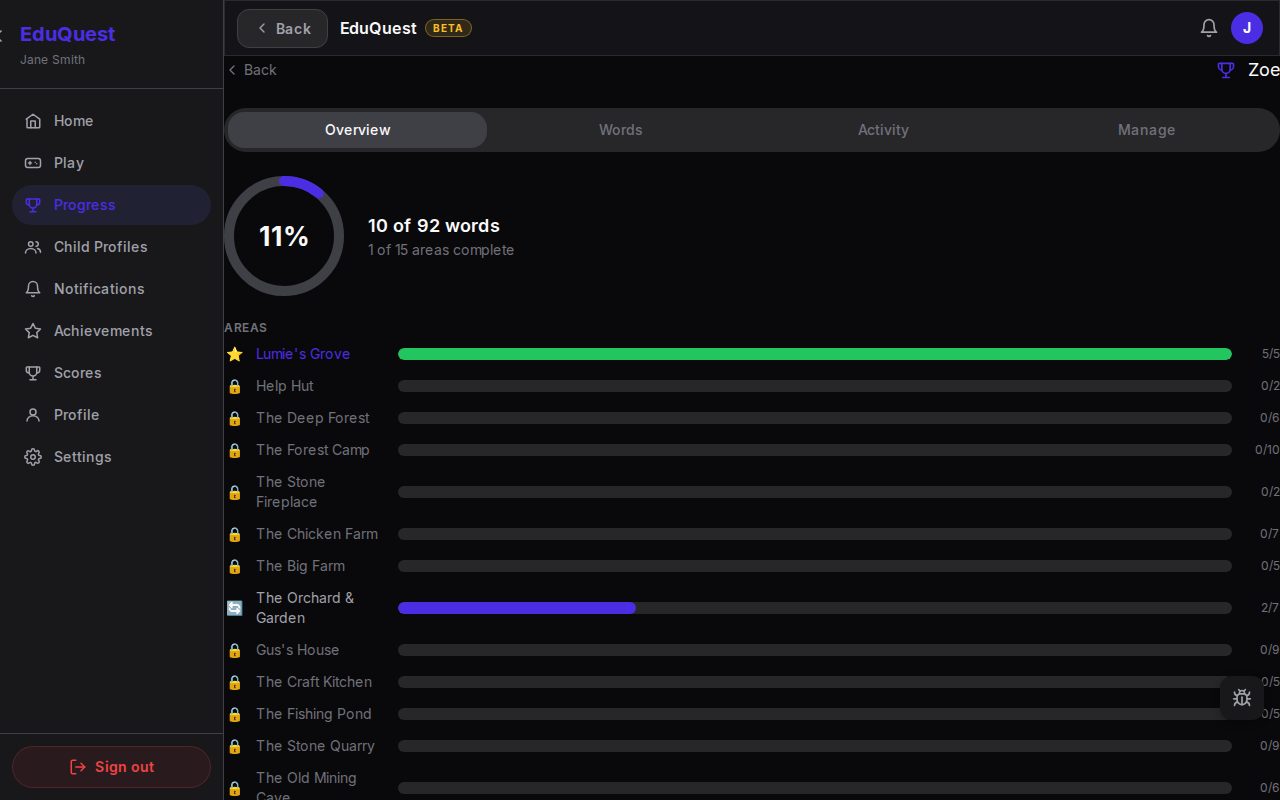 The Overview tab — the progress ring, the words counter, and one bar per area of the Misty Isle.
The Progress Ring and Words Counter
The big circular ring at the top of the Overview is the headline metric. The ring fills as your child learns words, and the line underneath reads something like "12 of 30 words" — total recognised, against the total available across the levels they've reached. There's also a second line showing areas complete, which we'll get to.
In Explorer mode, the words counter tracks letters out of the alphabet your child has encountered. In Reader mode, it tracks sight words and CVC words across the unlocked levels.
What it means: A higher number means your child has encountered and correctly identified more of the available content. But don't panic if it's low early on — WordQuest introduces letters and words gradually across levels. A child who has only played Level 1 won't have seen all 26 letters yet.
What to do with it: This is a long-term progress indicator. Check it weekly, not daily. If the number is climbing steadily, things are working. (Our ten tips for getting more out of WordQuest covers how to keep the line going up without turning it into a chore.)
Areas
Below the ring, the Areas section shows a bar chart of how complete each area (point of interest) is — orchard, fishpond, camp, and so on. Each bar fills as your child finishes the lessons and quests in that location.
What it means: More completed areas means more of the game explored and more challenges encountered. The bar chart is the best at-a-glance measure of where your child is in the world.
Accuracy, Level, and Streak
Three small stat cards sit below the bar chart.
Accuracy is the one parents look at most, and the one most likely to cause unnecessary worry. It shows the percentage of challenges your child answered correctly on the first attempt.
What it means: An accuracy of 70% means your child gets roughly 7 out of 10 challenges right on the first try.
What "good" looks like: 60-80% is the sweet spot. This means the game is appropriately challenging — your child is succeeding often enough to stay motivated, but encountering enough difficulty to actually learn. Below 50% consistently may mean the difficulty needs to come down. Above 90% consistently may mean the difficulty needs to go up or it's time to switch from Explorer to Reader mode.
What NOT to do: Don't stress about individual sessions. A child who was tired, distracted, or just having an off day might score 40% one session and 85% the next. Look at the trend over a week, not the number after one play session.
Level shows your child's current world progress as a row of stars. It moves up as they finish levels and serves as a quick visual of where they are in the journey.
Streak shows how many consecutive days your child has played. This isn't a guilt mechanic — there's no penalty for breaking it. It's there so you can spot patterns ("they've played eight days running, maybe a rest day is fine") and celebrate consistency when it's there.
The Words Tab
Switch to the Words tab and you'll see a timeline of every letter or word your child has encountered, with the most recent at the top. This is useful for two reasons: it tells you what your child is currently working on, and it gives you conversation starters.
"I see you found the letter M today! What word starts with M?"
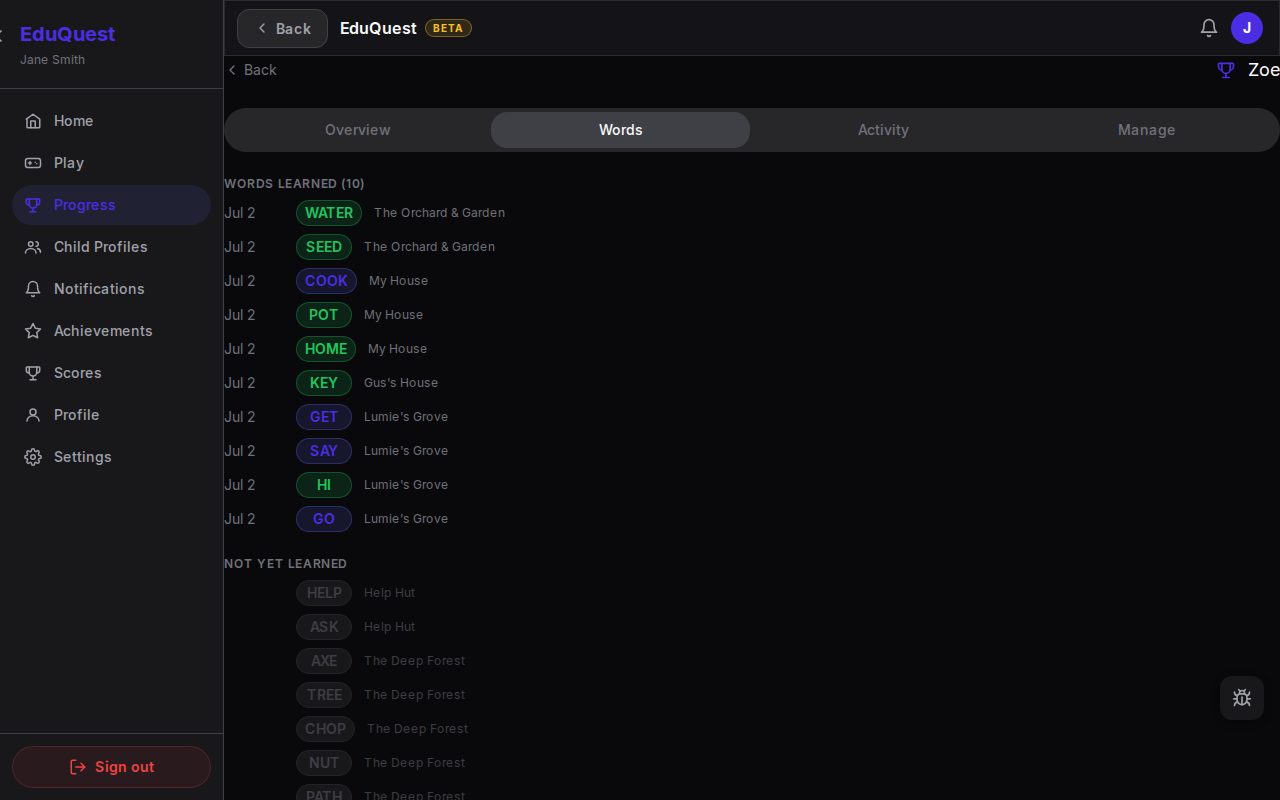 The Words tab — every word learned, newest first, with the location it was learned in.
This is where game learning extends into real life, and it's incredibly powerful for reinforcing what your child is picking up.
The Activity Tab
The Activity tab shows a chart of daily attempts and accuracy over time, plus any help requests your child has sent through the game. If your child taps the help button mid-session, it shows up here with the word they were stuck on — useful context for the next time you sit down to play together.
The Manage Tab
The Manage tab is where you reset specific locations if your child wants to replay them fresh. Resetting wipes the lessons, visits, and items collected at that location, but keeps vocabulary they learned elsewhere. Useful for younger siblings playing on the same profile, or for a child who's grown out of an early area and wants to revisit it.
What "Good" Progress Looks Like
Every child is different, and comparing your child's progress to any benchmark — or to a sibling — is counterproductive. That said, here are some healthy patterns to look for:
Positive signs:
- Accuracy trending upward over weeks (even slowly)
- New words/letters being added to the "learned" count regularly
- Your child voluntarily asks to play
- They mention letters or words from the game in other contexts
Signs to adjust:
- Accuracy consistently below 50% — consider switching to Easy difficulty
- Accuracy consistently above 90% with fast level completion — consider increasing difficulty or moving from Explorer to Reader
- Your child avoids playing or expresses frustration — take a break, then try shorter sessions with co-play
- No new words being added — they may be replaying completed content, which is fine for consolidation but might need a nudge toward new levels
Each of those is controlled by a setting — our configuration guide walks through every one of them.
A Note on Siblings
If you have multiple children using WordQuest, you'll see separate progress for each. Please resist the urge to compare them. A child working on whole words in Reader mode and one just learning letters in Explorer mode are on completely different journeys. Even two children at the same stage will progress at different rates, and that's normal.
The dashboard exists to help you support each child's individual path. It's a tool for encouragement, not competition.
WordQuest gives parents real visibility into what their child is learning — without collecting data from your child. New here? Our five-minute setup guide is the place to start. Already have an account? Your progress dashboard is always available at playeduquest.app.